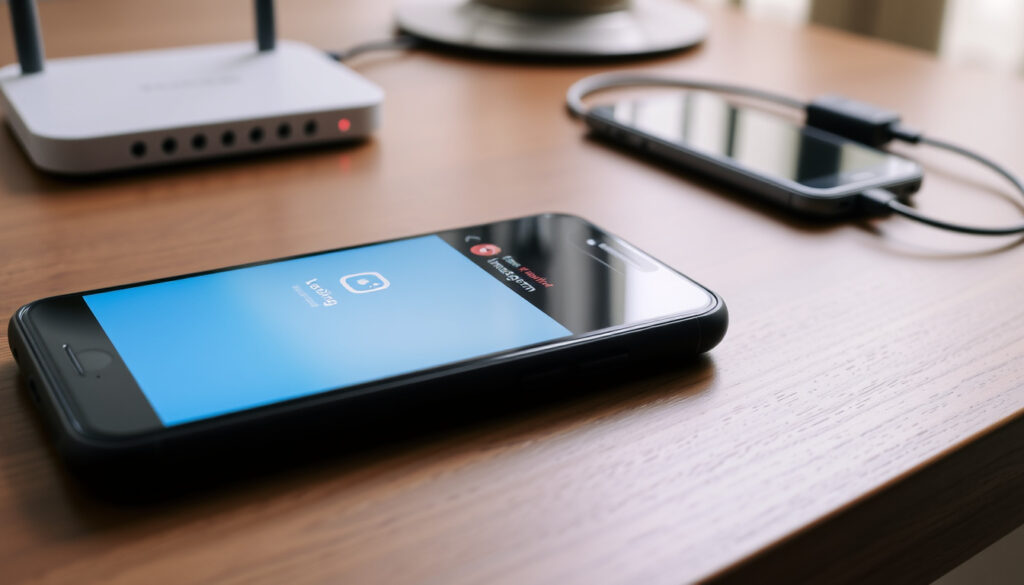
How to Fix Instagram Not Loading: 10 Proven Fixes in 2025
There’s nothing quite like the frustration of tapping the Instagram icon and watching that loading spinner spin forever. Whether it’s your feed, DMs, or profile that won’t load, the fix often depends on the actual culprit — your internet connection, the app itself, or a server outage. This guide walks you through ten proven fixes, backed by Instagram’s own help center and verified by community experience, so you can get back to scrolling in minutes.
Proven fixes available: 10 ·
Most common cause: Internet connection issues ·
Official troubleshooting page: Instagram Help Center ·
Primary affected platform: Android and iOS
Quick snapshot
- Clearing the app cache resolves most loading issues on Android (iMyFone mobile troubleshooting guide)
- Server outages affect all users at once (Downdetector real-time outage tracker)
- Restarting the device is the first step Instagram recommends (Instagram Help Center official troubleshooting page)
- Why some accounts experience loading problems while others on the same device work fine
- The exact cause of intermittent loading loops on specific Android and iOS versions
- Most loading issues can be fixed in 5–10 minutes with the steps below (FOX 5 New York local news coverage)
- Server outages typically resolve within 1–2 hours (FOX 5 New York local news coverage)
- If local fixes fail, check for account restrictions or contact Instagram support
- Persistent issues after reinstall may indicate a shadowban or server-side problem
Four key facts, one pattern: the most effective fixes are quick, free, and start with the simplest check — your internet connection.
| Label | Value |
|---|---|
| Common fix | Clear app cache resolves most loading issues |
| Official source | help.instagram.com/troubleshooting |
| Typical resolution time | 5–10 minutes for most fixes |
| Most affected platforms | Android and iOS |
Why is my Instagram suddenly not loading?
Check your internet connection
- Open a web page or run a speed test to see if your connection is working.
- If Wi-Fi is slow, switch to mobile data (or vice versa) — this swap often reveals whether the issue is with your network (FOX 5 New York local news coverage).
- Airplane mode trick: Toggle airplane mode on for 10 seconds, then off, to reset your device’s network connection (YouTube troubleshooting guide).
The implication: a poor internet connection is the most common cause of loading failures, and it’s the easiest to rule out. If Instagram loads on another device connected to the same Wi-Fi, the problem is device-specific, not your home network.
Restart the Instagram app
- On Android or iOS, close the Instagram app completely from the recent apps menu, then reopen it.
- This clears temporary glitches without losing any data (Instagram Help Center official troubleshooting page).
Update Instagram to the latest version
- Open the Google Play Store or Apple App Store, search for Instagram, and tap Update if available.
- Instagram regularly releases bug fixes; updating often resolves known loading issues (Instagram Help Center feature and technical problem guide).
Clear the app cache
- Android: Go to Settings > Apps > Instagram > Storage & cache > Clear cache (iMyFone mobile troubleshooting guide).
- iOS: Instagram does not offer a manual cache clear. Instead, use Offload App (Settings > General > iPhone Storage > Instagram > Offload App) and then reinstall — this removes temporary files while keeping your documents.
The catch: Clearing cache removes only temporary files. It won’t affect your login or saved drafts, but on iOS you lose the app itself during offloading. Still, it’s the most reliable way to flush corrupted data on iPhones.
For most users, the loading fix is a one-minute check on internet speed or a quick app restart. If neither works, move to the stuck-on-screen steps below — that spinner isn’t permanent.
Why is my Instagram stuck on the loading screen?
Force stop the Instagram app
- Android: Settings > Apps > Instagram > Force stop. On iOS, swipe up from the bottom and force-close the app.
- Forcing the app to stop breaks a persistent loading loop by ending all background processes (iMyFone mobile troubleshooting guide).
Restart your device
- Hold the power button (and volume button on some models) to restart your phone or tablet.
- A full reboot clears memory, stops background tasks, and resets the device’s network stack (Instagram Help Center official troubleshooting page).
Reinstall Instagram
- Uninstall the app, then download it fresh from the Play Store or App Store.
- Reinstalling replaces any corrupted app data and ensures you have the latest version with all bug fixes (YouTube troubleshooting guide).
Check for system updates
- Android: Settings > System > Software update. iOS: Settings > General > Software Update.
- Outdated operating systems can cause app incompatibility, leading to loading hangs. Keep your device OS up to date.
Why this matters: A stuck loading screen almost always means Instagram is waiting for data that isn’t arriving. Force-stop and restart are free, fast, and often the only needed fix.
Is there a problem with Instagram right now?
Visit Downdetector or IsItDownRightNow
- Downdetector real-time outage tracker shows a live map of user reports — a sudden spike in reports usually means a server outage.
- Down for Everyone or Just Me status lookup tool tells you if Instagram is down globally or just on your end.
Check @instagram on Twitter for official updates
- Instagram’s official Twitter account (@instagram) posts when they are aware of widespread issues. It’s the fastest way to get confirmation from the source.
Look at Instagram Help Center status page
- The Instagram Help Center official troubleshooting page occasionally posts outage alerts, though it’s not a dedicated status dashboard.
The pattern: If Downdetector and Down for Everyone both show red, save yourself the trouble — wait. Server outages are rare but affect everyone, and no amount of cache-clearing will fix them.
If Instagram loads on one device but not another on the same Wi-Fi, it’s not a server outage — the problem is local to that device. Don’t waste time checking status pages once you’ve ruled out a global issue.
How do I reboot Instagram?
Log out and log back in
- Go to your profile, tap the three-line menu, select Settings, scroll down, and tap Log Out.
- Logging out and back in refreshes your session token and may fix account-specific glitches, such as a stuck feed or missing DMs.
Clear app data (Android) or reset settings (iOS)
- Android: Settings > Apps > Instagram > Storage & cache > Clear storage. This deletes all locally saved data (including logins), so you’ll need to sign in again.
- iOS: The only equivalent is Offload App (Settings > General > iPhone Storage > Instagram > Offload), which removes the app but preserves your data. You’ll need to reinstall from the App Store.
Uninstall and reinstall the app
- Delete Instagram from your device, then install it fresh. This is the nuclear option — it guarantees you have the latest version and no corrupted files (YouTube troubleshooting guide).
The trade-off: Logging out and back in is the gentlest reboot and usually enough. Clearing data or reinstalling is more thorough but forces you to re-enter credentials and set up preferences again.
Why is my Instagram not working even after reinstalling?
Check account-specific issues (shadowban, temporary lock)
- Some accounts receive temporary restrictions (shadowban) that limit content visibility — this can manifest as feeds not loading or profiles appearing blank. Check your Instagram email for any notices.
- According to Reddit r/techsupport community troubleshooting discussion, users sometimes find that a secondary account works fine while the primary one does not — a strong sign of an account-level restriction.
Try using Instagram on a different device or Wi-Fi
- Log into Instagram on a friend’s phone or a tablet to see if the problem follows your account or stays on your device. If it works on another device, the issue is your phone’s hardware or network.
- If Instagram loads on cellular but not Wi-Fi (or vice versa), the problem is local connectivity, as noted by FOX 5 New York local news coverage.
Contact Instagram support
- Within the app: Settings > Help > Report a Problem. Describe the loading issue with as much detail as possible.
- Instagram’s Help Center report a technical problem page allows you to submit logs that help their team identify server-side bugs tied to your account.
The implication: If reinstall doesn’t fix it and you’ve ruled out a server outage, the problem is almost certainly account-specific. Only Instagram support can lift shadowbans or verify whether your account has been flagged.
Confirmed facts
- Clearing the app cache resolves many loading issues, especially on Android (iMyFone mobile troubleshooting guide).
- Server outages affect all users simultaneously (Downdetector real-time outage tracker).
- Reinstalling the app can fix corrupted data (YouTube troubleshooting guide).
What’s unclear
- Why some accounts experience loading problems while others on the same device do not (Reddit r/techsupport community report).
- The exact cause of intermittent loading loops on specific device models and OS versions.
Quotes from users and experts
Restart your phone or tablet. Uninstall and reinstall the app. These steps resolve the vast majority of app issues.
— Instagram Help Center official troubleshooting guide
My main account won’t load anything, but my secondary works fine. Definitely something going on with the account itself.
10 proven fixes for Instagram loading problems: from checking your internet to clearing cache to using Downdetector.
— FOX 5 New York troubleshooting segment
For the average user who’s tried the basic steps, the next move is clear: rule out a server outage, then check if the problem is tied to your account. If neither is the case, a deep-clean reinstall followed by a support ticket is your best bet. For Android users, the cache clear alone saves countless minutes of spinning wheels. For iOS users, offloading the app is the closest equivalent — and it works.
Related reading: **How to Use Siri Shortcuts: Guide for iPhone, iPad & Mac** · **iPhone 17 Pro Max Specs: Full Technical Details and Features**
youtube.com, youtube.com, isitdownrightnow.com, facebook.com
Frequently asked questions
Why does Instagram keep crashing on my phone?
Crashing often results from outdated app versions, insufficient storage, or corrupted cache. Update Instagram, clear cache (Android) or offload (iOS), and free up storage space.
How long do Instagram outages usually last?
Most server outages are resolved within 1–2 hours, according to historical data on Downdetector. Minor glitches may clear within minutes.
Can a VPN cause Instagram not to load?
Yes — some VPNs interfere with Instagram’s servers. Disable your VPN during troubleshooting (YouTube guide on VPN interference).
Does clearing Instagram data delete my messages?
Clearing cache does not delete messages. Clearing storage (Android) may remove locally cached messages, but your DMs are stored on Instagram’s servers and will reappear after you log back in.
Why is Instagram loading slowly even on good internet?
Slow loading on a fast connection may indicate app cache buildup, background app updates, or an account restriction. Try clearing cache and logging out/in.
What should I do if Instagram is not loading on my iPad?
Update the app from the App Store, check iPad internet settings, and use Offload App under Settings > General > iPhone Storage. The same troubleshooting steps apply as on iPhone.
How do I check if Instagram is down in my area?
Visit Downdetector or Down for Everyone or Just Me. If the map shows reports from your region, it’s a server issue.
More related posts
 Flamengo vs Bayern Munich Lineups: Confirmed XI & Score
 Singlife Cancer Cover Plus II Review: Coverage & Costs
 Google Image Reverse Search: How to Search, Tools & Legality
 WhatsApp Hari Raya Greetings: Best Wishes & Messages
 Best Smart Watch 2025: Top Picks for Every Budget and Need
 Demon Slayer Exhibition Singapore: 2026 Dates, Tickets & Guide
 Gain City Ang Mo Kio: Address, Hours, Products & Contact Info
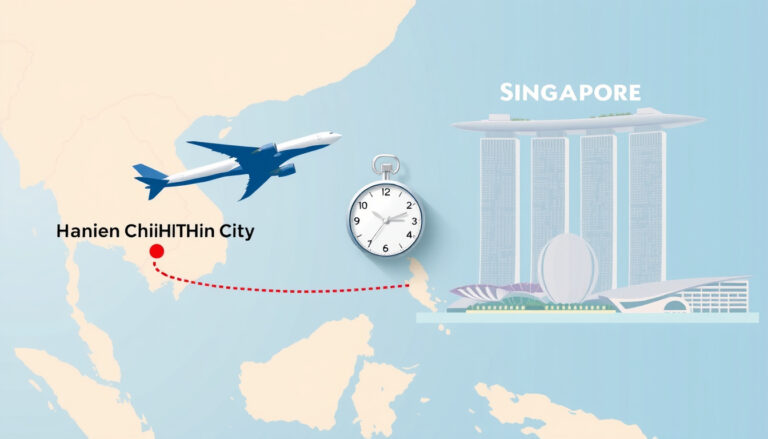 Ho Chi Minh to Singapore: Flight Time, Distance & Travel Guide