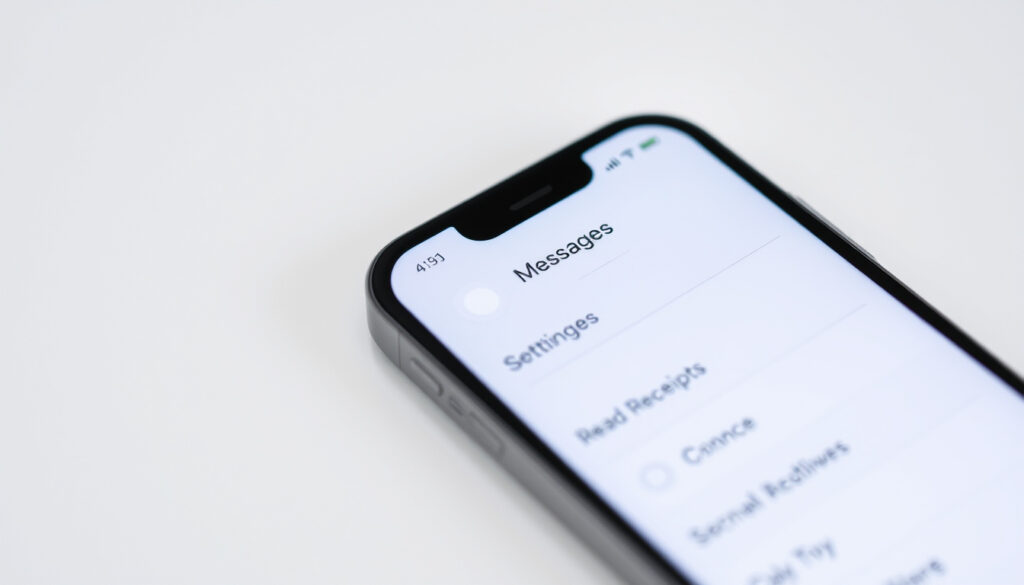
How to Turn Off Read Receipts on iPhone: Step-by-Step Guide
You open a message and instantly the sender knows — a read receipt is a privacy trade-off most iPhone users never consciously agreed to. Apple built the controls to flip that off, either across every conversation or down to the individual contact.
Official Source: Apple Support ·
Setting Path: Settings > Messages > Send Read Receipts ·
Applies To: iMessage (blue bubbles) ·
Global Toggle: Affects all conversations ·
Per Contact Option: Available in contact details
Quick snapshot
- Global toggle sits at Settings > Messages (Asurion guide)
- Per-contact control available since iOS 10 in September 2016 (Gadget Hacks walkthrough)
- Feature works only in iMessage, never SMS or group chats (iDrop News overview)
- Whether exact iOS versions beyond iOS 10 introduced further refinements to the toggle behavior
- How frequently Mac sync issues occur with post-2023 iOS updates
- Whether regional carriers introduce any iMessage variation affecting receipt delivery
- Before September 2016: read receipts were global-only (Gadget Hacks walkthrough)
- iOS 9.3.5 (August 2016) was the last version without per-contact option (Gadget Hacks walkthrough)
- iOS 10 (September 13, 2016) added per-contact toggle (Gadget Hacks walkthrough)
- Apple’s per-contact control gives users fine-grained privacy flexibility (iDrop News overview)
- If global toggle changes, per-contact settings reset and require re-enabling (iDrop News overview)
- iOS updates may occasionally affect preference persistence (iDrop News overview)
The table below consolidates the technical specs that define how read receipts operate across iOS versions and device types.
| Label | Value |
|---|---|
| Feature Scope | iMessage only (blue bubbles) |
| Toggle Location | Settings > Messages |
| Per User Option | Yes, in contact info |
| SMS Impact | None (no receipts for green bubbles) |
| Group Messages | No read receipts support |
| Minimum iOS | iOS 10 (September 13, 2016) |
| Previous Max iOS | iOS 9.3.5 (August 2016) |
| Mac Override Risk | iPhone settings can be overridden by Mac iMessage |
How do I turn off read receipts for messages on my iPhone?
The most direct approach is the global toggle — one switch that applies to every iMessage conversation on your device. Open the Settings app, scroll down to Messages, and locate the Send Read Receipts switch near the top. Toggle it off. From that point, senders will see “Delivered” instead of “Read” under your messages, regardless of who sent them.
Apple Support notes that this global setting is straightforward but comes with a trade-off: when you disable it, you also lose the ability to see when others have read your messages. The setting is symmetric — it hides your read status from everyone, and you lose visibility into theirs.
Steps in Settings app
- Open Settings on your iPhone
- Tap Messages
- Find Send Read Receipts and toggle it Off
- Exit Settings — the change takes effect immediately
Disabling read receipts globally means you cannot tell if a specific person has read your message. For users who want selective privacy — turning it off for some contacts but keeping it on for close friends — the per-contact method (covered below) is the better path.
What this means: if you share an iPhone with a partner or family member and want to check messages privately, toggling off the global setting is the fastest solution. It affects all conversations instantly.
How do I disable read receipts in settings?
The Settings app is the primary hub for iMessage preferences. Beyond the global toggle, you can manage related options that interact with read receipts behavior. These include whether iMessage is even enabled on your device, and how notifications appear when new messages arrive.
Detailed path for iOS
- Launch Settings
- Navigate to Messages
- Confirm iMessage shows as enabled (green) — read receipts only function when iMessage is active
- Tap Send Read Receipts to toggle Off
- Optional: Review Notify When Left Open — this relates to delivery, not read status
Turning off read receipts does not prevent senders from knowing you received the message — only that you opened it. The “Delivered” status still appears when your device accepts the message.
iOS version notes
The global toggle has existed since earlier iOS versions, but per-contact control arrived with iOS 10 on September 13, 2016. If you’re running a version before iOS 10, only the global toggle is available. Asurion confirms that the per-contact feature requires iOS 10 or later — an important distinction for users on older devices like the iPhone 5s, which maxed out at iOS 9.3.5.
The pattern: if you need per-contact control, ensure your device is updated to at least iOS 10. For devices that cannot upgrade beyond iOS 9.3.5, only the global option exists.
How to turn off read receipts on iPhone for one person?
This is where Apple’s implementation gets genuinely useful. Since iOS 10, you can override the global setting for individual contacts — enabling read receipts for close friends or family while disabling it for others. Gadget Hacks describes it as “pick and choose which contacts have Read Receipts enabled or disabled,” giving users fine-grained privacy control.
Per-conversation toggle
- Open the Messages app
- Select the conversation with the specific contact
- Tap the contact name or “i” icon at the top right of the conversation
- Scroll down and locate Send Read Receipts
- Toggle it Off for that specific person
- Tap Done to confirm
Contact card method
The contact card inside each conversation view shows the same toggle. As iDrop News confirms, this per-contact option “allows enabling for close contacts while disabling for others” — a flexibility that didn’t exist before iOS 10. Notably, this setting overrides the global toggle in either direction: you can disable it globally but enable it for one person, or vice versa.
Changing the global Send Read Receipts setting resets per-contact settings back to default. Apple Support Community members report that if you toggle the global setting, you must manually re-apply per-contact preferences — they don’t persist through global changes. Keep this in mind if you experiment with the global toggle.
The implication: if you disable read receipts globally, then later enable them for a specific person, your global setting reverts to “on” for everyone else. Managing per-contact settings requires deliberate attention each time you adjust the global toggle.
How do you read an iPhone message without it saying read?
Even with read receipts enabled by default, there are workarounds to preview a message without triggering the “Read” notification. These methods don’t change your setting — they let you peek without opening the conversation in a way that sends the receipt.
Preview without opening
- Use the lock screen notification preview — when a message arrives, the preview text appears without marking it as read
- Swipe left on the notification to see a snippet without opening the message
- Long-press the notification banner on the lock screen for a quick preview
Airplane mode trick
If you need to open the message without sending a read receipt, you can use Airplane Mode as a workaround:
- Enable Airplane Mode before opening the message
- Open the conversation — since there’s no network connection, no receipt sends
- Read at your leisure, then close Messages
- Disable Airplane Mode when done
This method works but leaves the message unread locally — you may need to manually return to it later. It also disconnects you from all network services until you turn Airplane Mode off, making it impractical for regular use.
The catch: these workarounds are useful for occasional peeks but aren’t practical as a daily privacy strategy. If you find yourself regularly wanting to read without marking read, adjusting the toggle permanently is more reliable. If you’re looking for a more permanent solution, you can learn how to turn off read receipts on your iPhone at iPhone 15 Pro Max price Ireland.
How can you tell if someone turned off their read receipts on iMessage?
You can’t know with absolute certainty, but there are signals that suggest someone has disabled read receipts for your conversation specifically. The absence of evidence isn’t proof, but patterns can give you reasonable confidence.
Visual cues
- No “Read” label — if your message consistently shows “Delivered” instead of “Read,” their receipts may be off
- Response timing — if they clearly responded quickly after you sent a message but no “Read” appeared, their setting is likely disabled for you
- Group chats differ — read receipts don’t work in group messages regardless, so don’t draw conclusions from group behavior
Testing methods
As Gadget Hacks and iDrop News both confirm, read receipts only function in individual iMessage conversations (blue bubbles). SMS messages and group chats never show read status. This means a “Delivered” label in a group chat context is normal, not evidence of a disabled setting.
What this means: without directly asking someone, you can only infer their setting through consistent behavior — if they reliably see your messages instantly but never trigger a “Read” indicator, they likely have receipts disabled specifically for you or globally. iDrop News notes that Apple “finally allows per-contact control, improving privacy flexibility” — meaning more people now actively use this feature.
Upsides
- Per-contact control since iOS 10 (September 13, 2016) gives genuine privacy flexibility
- One global toggle affects all conversations instantly
- Works across iPhone, iPad, and iPod touch with iOS 10 or later
- Feature has no regional variations — uniform worldwide
Downsides
- Disabling hides your own ability to see others’ read status (symmetric setting)
- Global toggle changes reset per-contact preferences
- Mac iMessage settings can override iPhone settings, requiring manual sync
- No read receipts support in SMS or group messages
As long as you’re running iOS 10 or higher… you can pick and choose which contacts have Read Receipts enabled or disabled. — Gadget Hacks walkthrough (Tech Guide Author)
It’s good to see that Apple finally allows users to enable or disable iMessage read receipts on a per-contact basis. — iDrop News overview (Article Author)
For iPhone users who want selective privacy, the combination of a global toggle and per-contact control gives you real flexibility. The per-contact option introduced in iOS 10 (September 13, 2016) was a meaningful improvement over the earlier all-or-nothing approach, and it works identically whether you’re on an iPhone 13, 14, or 15. The trade-off remains symmetric: disabling receipts hides your own visibility into others’ read status, and global changes reset per-contact preferences — so intentional management is required if you want granular control.
Related reading: iPhone 16 Pro Deals in Singapore
Frequently asked questions
Can you turn off read receipts on iPhone text?
Yes, but only for iMessage (blue bubbles). SMS and group messages never support read receipts. Navigate to Settings > Messages > Send Read Receipts and toggle it Off, or use the per-contact method within individual conversations.
Does turning off read receipts affect group chats?
No. Read receipts do not function in group chats regardless of your individual setting. Group message threads show delivery status but never “Read” indicators for any participant.
What if read receipts are on for the sender?
Your setting and the sender’s setting operate independently. If you turn off your read receipts, senders won’t see “Read” under your messages — regardless of whether they have receipts enabled. You also won’t see when they read your messages.
Does it work on iPhone 15?
Yes. iPhone 15 runs iOS 17 or later, which includes all the per-contact read receipt controls available since iOS 10. The global and per-contact toggles function identically across all iPhone models running iOS 10 or newer.
How to turn off read receipts iPhone 14?
Identical process to other models: Settings > Messages > Send Read Receipts (global) or Messages > conversation > contact > Send Read Receipts (per-contact). iPhone 14 ships with iOS 16, which fully supports per-contact control.
Are read receipts available for SMS?
No. SMS messages (green bubbles) never support read receipts. This is a limitation of the SMS protocol itself, not an Apple setting. Read receipts work only within iMessage.
What happens if both people have read receipts off?
Messages show “Delivered” for both parties. Neither can see if the other opened the message, and no “Read” indicator ever appears. The behavior is symmetric and consistent regardless of which party disabled it first.
For iPhone users who need to maintain privacy without losing all visibility into their most important conversations, the per-contact method offers the right balance: disable globally, then selectively enable for the people whose responses you want to track.
More related posts
 WhatsApp Hari Raya Greetings: Best Wishes & Messages
 Singapore Zoo Ticket Price 2025: Official Rates & Discounts
 Au tralia v England 1 t Te t corecard A he 2025-26
 Lee Byung-hun – Career Films Awards Family Overview
 Oriental Kopi @ Bugis Junction: Photos, Menu & Reviews
 T20 World Cup Brackets 2026: Qualification & Semi-Final Paths
 Pepper Steak Near Me: Cuts, Health, and Where to Find It
 Cheap Flower Delivery Singapore: Free Same-Day Under $30