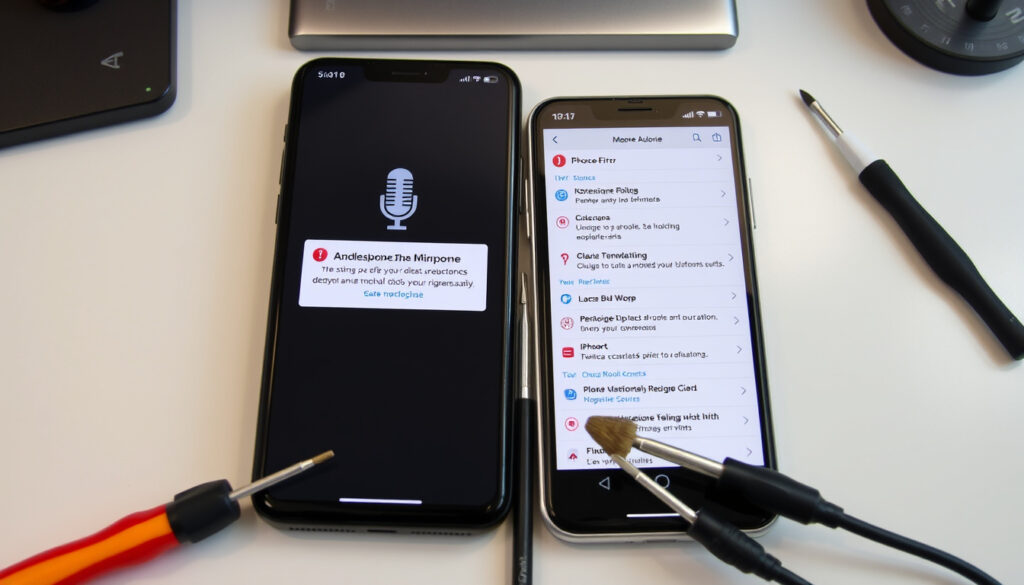
How to Fix Phone Microphone Not Working: Android iPhone
When someone tells you they can’t hear you during a call, but you sound fine on speaker, the problem is usually simpler than it feels. Microphone issues rank among the most common complaints for iPhone, Samsung, and Android users alike — and most of the time, a quick restart or permission tweak is all that stands between you and clear audio. Here’s how to troubleshoot microphone problems step by step, using guidance directly from Samsung, Apple, and professional repair technicians.
Top initial fix: Restart device · Common cause 1: Microphone permissions · Common cause 2: Dirt blocking mic · Test method: Voice Memos app · Official advice: Clean bottom mic hole
Quick snapshot
- Restarting clears temporary audio glitches (iGenius Phone Repair)
- Cleaning debris from the mic grille resolves blockages (Samsung UK Support)
- The microphone sits at the bottom of most Android and iPhone devices (Samsung UK Support)
- Whether a given mic failure stems from hardware damage or a stubborn software conflict (Samsung UK Support)
- How often cases or screen protectors are actually responsible versus other factors (Samsung Africa Support)
- Microphone issues across iPhone, Samsung, and Android devices are reported daily by professional repair technicians (iGenius Phone Repair)
- If standard fixes fail, professional repair can clean, reset, or replace the mic in under a day (iGenius Phone Repair)
| Key facts | Details |
|---|---|
| Most common first step | Restart device |
| Key location Android | Bottom of phone |
| iPhone test app | Voice Memos |
| Permissions check | Settings > Apps > Permissions |
How do I fix the microphone on my phone?
Start with the basics before diving into settings. A simple restart clears temporary audio glitches that may be muffling your voice. Restarting resets the audio system and clears background processes that could be interfering with microphone input.
- Power off your device completely, wait 10 seconds, then power back on
- Make a test call to see if the issue persists
If restarting doesn’t help, check whether a software update is available. Outdated system software can cause microphone recognition issues on both Android and iPhone devices.
Test in apps like Voice Memos
Recording a voice note or video helps you determine whether the issue is hardware-related or software-based. Open Voice Memos (iPhone) or any voice recorder app (Android), speak clearly toward the bottom of the device, and play back the recording.
If your voice sounds clear in the recording but you can’t be heard during calls, the problem points to app permissions or call routing rather than the physical microphone. If the recording itself is muffled or silent, a hardware issue is more likely.
Testing with alternative call apps like WhatsApp, FaceTime, or Messenger can further identify whether the issue is app-specific or system-wide.
How do I turn my mic on on my phone?
Permissions are one of the most common culprits behind a “dead” microphone. Even if the hardware works fine, apps can’t access the mic without explicit permission from your device.
Enable microphone permissions
On Android, navigate to Settings > Apps > Permissions and ensure microphone access is toggled on for the apps that need it. You can also find this under Security & Privacy > Privacy > Microphone Access.
If a specific app like WhatsApp isn’t picking up your voice, open that app’s settings and verify microphone permissions are granted.
Check app settings and quick toggles
Some Android phones and Samsung Galaxy devices have quick settings tiles that can disable microphone access globally. Swipe down from your home screen and look for a microphone icon — if it’s crossed out or greyed, tap to enable it.
Permissions are behind a surprisingly large share of mic complaints. Before assuming hardware failure, double-check that your calling and messaging apps actually have permission to use the microphone.
Why is my voice not heard on my phone?
The physical microphone opening at the bottom of your phone can easily become blocked by pocket lint, dust, or debris. When the microphone hole is obstructed, voice commands for Bixby or Google Assistant may not be recognized, and callers will report hearing muffled or silent audio.
Clean the microphone holes
Use a non-metallic object like a wooden or plastic toothpick to gently remove debris from the microphone grill. Samsung specifically recommends avoiding metal tools that could damage the opening further.
Avoid using compressed air unless the manufacturer advises it — too much pressure can push debris deeper into the microphone cavity.
A poorly placed screen protector or case is one of the most common causes of sound distortions during calls on Galaxy phones, according to Samsung’s support documentation. If you recently added a new case or screen protector, remove it temporarily and test the microphone again.
Check for blockages and accessories
Foreign objects such as attachable protective covers or films placed on phones before purchase can block microphone holes. Inspect the bottom edge of your phone carefully — use a flashlight if needed — and remove any visible obstructions.
How do I reset a microphone?
Resetting microphone-related settings doesn’t require a full factory reset every time. Start with app-level permission resets before escalating to more drastic measures.
Reset app permissions
On Android, go to Settings > Apps > Permissions, find the microphone permission for problematic apps, and toggle it off, then back on. This forces the app to re-request access and can resolve software conflicts.
If you suspect a third-party app is interfering with the microphone, uninstall recently installed apps one by one, testing your mic after each removal. Samsung’s support documentation recommends uninstalling apps in the order of last installation to identify the culprit.
Safe mode boot
Booting your phone into Safe Mode disables third-party apps, letting you test whether the issue is caused by installed software. On Samsung Galaxy devices, press and hold the power button, then press and hold “Power off” until the Safe Mode option appears.
If your microphone works fine in Safe Mode, a third-party app is definitely the cause. If the problem persists in Safe Mode, the issue likely points to system software or hardware.
Factory reset as last resort
A factory data reset clears all data and settings from your device and should only be attempted after backing up everything important. Samsung notes that factory data reset is not reversible and requires full backup beforehand.
Factory resets erase everything. Only go this route if all other steps fail and you’ve confirmed a backup of your photos, messages, and app data. If microphone issues persist after a reset, Samsung recommends contacting support for hardware inspection.
Why can’t someone hear me when I call them?
When callers can’t hear you but speakerphone works fine, the bottom microphone — which handles voice capture during regular calls — is likely blocked or damaged. The bottom microphone handles primary voice capture during standard calls, while the top microphone often handles noise cancellation and supplementary input.
iPhone-specific checks
Apple advises iPhone users to open Voice Memos, tap the record button, and speak clearly at the bottom of the phone. Hold the device in your normal calling position and check if the recording picks up your voice clearly.
iPhone users should also check that the Phone app has microphone permissions in Settings > Privacy > Microphone.
Android call mic test
On Android, test the microphone during a regular call and then switch to speakerphone. If you sound clear on speaker but not in normal call mode, the bottom microphone is the problem area to focus on.
In-call volume can only be adjusted during an active call — adjusting volume from the home screen only affects ringtone volume. Make sure you’re adjusting volume while actually on a call.
Wi-Fi Calling can interfere with call quality and microphone performance on Galaxy phones. If you use Wi-Fi Calling and experience mic issues, try disabling it temporarily under Settings > Connections > Wi-Fi Calling.
Switch to speakerphone as a diagnostic step
Using speakerphone during calls forces the phone to use its main speaker-microphone system, which can bypass a malfunctioning bottom mic. This won’t fix the problem, but it confirms whether the bottom microphone is the specific failure point.
What we know for certain
The pattern across Samsung, Apple, and professional repair guides is consistent: most microphone issues stem from permissions, debris, or accessory interference rather than actual hardware failure.
Confirmed
- Restarting resolves temporary audio glitches
- Cleaning with a non-metallic tool clears debris blockages
- Screen protectors and cases commonly obstruct the microphone
- Permission toggling fixes app-specific mic failures
- Safe Mode reliably identifies third-party app conflicts
Less certain
- Whether hardware failure is the cause when all software fixes fail
- How carrier-specific issues affect microphone performance
- The exact cost of professional microphone replacement
Phone microphone issues are common but often easy to fix through checking permissions, cleaning, disconnecting Bluetooth, or updating software.
— Boston Mobile Phone Repairs
Professional phone repair technicians inspect both top and bottom microphones and run diagnostics to isolate microphone faults. If a Bluetooth headset microphone works fine but the phone microphone does not, the issue is definitely with the phone microphone.
— iGenius Phone Repair (San Diego)
Related reading: iPhone 16 Pro deals in Singapore · phone repair shops
Persistent mic problems during calls often stem from software glitches, where detailed iPhone and Android solutions provide step-by-step recovery options.
Frequently asked questions
Where is the microphone on Android phone?
The microphone on Android phones is typically located at the bottom of the device. Samsung’s official troubleshooting documentation confirms this placement for Galaxy phones.
How to turn on microphone on Android phone?
Navigate to Settings > Apps > Permissions and enable microphone access for the apps that need it. You can also toggle microphone access on or off in Android Settings under Security & Privacy > Privacy > Microphone Access.
Phone mic not working in calls but works on speaker?
If your microphone works on speakerphone but not during regular calls, the bottom microphone is likely blocked or damaged. Clean the bottom microphone opening and remove any case or screen protector that might be obstructing it.
How to turn on microphone on Samsung phone?
Go to Settings > Apps > Permissions and grant microphone permissions to the Phone app and any calling apps you’re using. Samsung Galaxy devices also have quick settings tiles that control global microphone access — check there if an app-level permission doesn’t resolve the issue.
Why is my microphone not working on my phone during calls?
The most common causes are: microphone permissions not granted to the calling app, debris blocking the bottom microphone opening, a case or screen protector obstructing the microphone, or a software glitch that a restart typically clears.
Microphone not working on Android?
Test the microphone using Voice Memos or a recording app. If the recording is clear, the issue is permission-related. If the recording is muffled, clean the microphone openings and remove any accessories that might be blocking them.
Fix microphone problems on phone?
Work through this sequence: (1) restart the device, (2) check app permissions, (3) clean the microphone holes, (4) test in Safe Mode to rule out third-party apps, (5) disable Wi-Fi Calling if enabled, and (6) seek professional repair if the problem persists.
For Android and Samsung users, the troubleshooting path is clear: restart first, check permissions second, clean the hardware third. For iPhone owners, Voice Memos is your diagnostic tool of choice — speak at the bottom of the device and verify the recording before assuming hardware failure. If standard fixes don’t resolve the issue, professional repair technicians can diagnose and address microphone problems in under a day.
More related posts
 Premier League schedule 2025/26: fixtures, standings, live scores
 Adelaide United vs Sydney FC: Prediction, Results, Lineups & Live
 Niat Puasa Senin Kamis: Arabic, Latin & How to Combine
 Ma La Xiang Guo: Complete Guide to Recipe, Ingredients, and Tips
 The Good Beer Company: Ownership, Locations, and Menu Guide
 SG to HK Flight Time: Duration, Airlines & Cheap Months
 Helen’s Orchard Central Menu: Prices, Drinks & Reviews (2025)
 Lee Jung-eun: From Stage Veteran to Parasite Icon